
Earlier this day, we discussed about text portraits; the process of making it; and operating Google docs which is an online word processor that lets you create and format text documents and collaborate with other people in real time.
What are text portraits? Text portraits are basically images that appear to be made up of various typefaces. It creates an illusion that the image seen in the photo is actually being created by multiple lines of type. This effect is one of the most popular trends up to this day. It crosses the line between modern and pop art. Here is an easy way to create text portraits in Adobe photoshop:
- Open your file/photo in photoshop. Personally, I would say close-up portraits or face profiles would be better to use.
- Delete the background of the photo to avoid including the background in the selection of shadows and midtones. You can do this by using the quick selection tool and selecting the undesired background. Press the "delete" key and deselect the background.
- Go to select>color range. In the window that opens, select "shadows" as the color range selection option. This will automatically select the "shadows" of the image. Press CTRL+J to duplicate these shadowed areas and produce its own layer. Name this new layer "SHADOWS".
- Click on the layer 0 (1st/background layer) and repeat step 3, but this time, select "midtones". Name the new layer "MIDTONES"
- Click on the SHADOWS layer. Go to edit>fill. On the window that opens set the contents to use "black", change the blending mode to "normal" and 100% for the opacity. Also tick the checkbox for preserve transparency.
- Repeat step 5 but click on the MIDTONES layer and use "50% gray" for the contents.
- Hide Layer 0 (1st/background layer).
- Merge the SHADOWS and MIDTONES layer. You can do this by highlighting both layers then right-click on the mouse and click "Merge Layers".
- Open 2 new layers.
- Fill the first new layer with white and then hide it.
- Click on the merged shadows & midtones layer. Press CTRL+A (this will select the whole image) and then CTRL+C (copy).
- Click on the 2nd new layer. Deselect the image. Go to brushes and use the typeface brush/es you made(*Tutorial below). Use 100% opacity.
- Fill in the photo with various sizes and thickness (depends on how many times you click in one brush stroke) of the typeface brush. This is important to achieve the illusion of the image being completely made up of only text.
- Stay in the previous layer and click on "add layer mask" icon at the bottom of the layers panel. Hold ALT and click on the layer mask. The screen should turn white. Press CTRL+V to paste our previous selection.
- Deselect the area. Press CTRL+I to inverse the image.
- Click on the original layer (the text filled image). Hide the merged shadows & midtones layer. Unhide the white-filled layer.
- Double-click on the 2nd new layer (the text-filled image and the layer mask). Go to gradient overlay, choose "screen" for the blend mode. You can also choose the gradient colors you prefer in the selection.
- Once you are done, go to brushes again and choose a soft-edge brush. Set the opacity to 33% run the brush over the parts you want to define a little more.
- YOU ARE FINALLY DONE! Don't forget to save your work :)
*How to make your own brush in photoshop:
- Open a new file, feel free to choose your own dimensions.
- Click on the "text" tool to start typing. You can type in anything that you want. It would be best to use words/sentences/paragraphs that are related to your subject since it would bring out the atmosphere of the image. I used song lyrics from the net to make things faster.
- Click on the rectangle marquee tool. Enclose the whole text that you entered.
- Go to edit>define brush preset. Click ok. This will make the text into a brush.
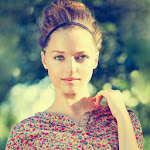
Here are a few text portraits I've made:




0 comments:
Post a Comment